I have been doing more backend work to help my schools, but I hope to be doing more teacher coaching in the coming days and weeks.
However, I have been able to spend some time helping one of my school's PE teacher implement heart rate monitors with her students. So far, it has been quite fulfilling, though we did run into small hiccups. The students loved being able to see live information showing calories burned and their heart rate.
I wrote a short article hyping up the teacher and explaining the work we did to get the devices ready. Here is the article. I hope to do more of these after the positive feedback I received.
Monday, September 26, 2016

Monday, July 25, 2016
Two Helpful GAfE Resources

I have been busy training new staff at my schools. We are a Google district, so Google Apps for Education (GAfE) is an important topic.
My main resource is this one-page guide (screenshot is above) that hyperlinks to a variety of visual how-to guides.
As I was prepping for a presentation this morning I came across this fantastic Chrome Extension, Training for Google Apps. While you are using a GAfE product, you will see an icon pop up showing you product specific trainings (icon is below).
 |
| Training for Google Apps Icon |

Wednesday, June 29, 2016
Big Google News from ISTE 2016!
The video above highlights the Google Forms news...I used Explain Everything on my Chromebook to make the video. Explain Everything is part of the news in the article linked above ;)
Explain Everything is a little quirky on a Chromebook, and there is a learning curve that would frustrate some teachers and students. However, the tool is powerful in that it allows students and teachers to explain information in a creative manner.
Thursday, June 16, 2016
EdTech Tips: DocHub, Wordclouds.com, and Toony Tool
Lucky me, I am a twelve-month employee, so I will be busy this summer helping new teachers in their on boarding process, while working with my returning teachers. Therefore, I hope to be posting throughout the summer!
How often do you get asked to fill out a PDF questionnaire for your principal or school district? If you work in my district, it happens all the time! To make your life easier you should check out DocHub. This Google Drive app allows you to easily edit a PDF within Google Drive. I recently used it to add checkmarks to my annual evaluation before sending it to my principal. You will love this nifty tool.
I have been a big fan of word clouds for many years. I feel like I go in and out of love with them, and you can guess that I am currently in love with them. I love the way a word cloud can hook students into a topic or unit they are going to learn. Many word cloud sites exist, but I am a big fan of Wordclouds.com because you can customize the shape of the word cloud, the amount of words, and the orientation of the words without much effort.
Students can use their higher order thinking skills to predict what they will learn about by analyzing the shape of the word cloud, as well as which words are bigger (show up more in the document). I love using word clouds with my ELL students since they can provide accessible entry points into assignments and projects.
My final tool is something I am really loving...Toony Tool. A user can create custom cartoons and memes without much effort. Memes are a great way to begin or end a class using a little bit of humor. I like making memes that have something to do with what we are studying...if a student gets what makes the meme funny, they likely understand the concept presented. A student can also make cartoon strips showing understanding of different concepts with Toony Tool. Instead of using a multiple choice assessment, how about having a student demonstrate the meaning of a concept by making a simple cartoon or cartoon strip.
I hope you enjoy my latest post...message me if you have any questions or suggestions.
Thursday, May 19, 2016
Tools to Help Struggling ELL Readers (or any reader)

I recently put together a concise of MUST USE TOOLS to help struggling ELL readers. In reality, some of these tools will help any struggling reader.
Most of these tools are Chrome Extensions (They will enhance student’s reading experience). I have become a big Chrome bully. I don't know why a teacher in a GAFE school would use another browser.
Google Translate: Translate an entire website into nearly any language without copying/pasting text. (Chrome Extension)
Read&Write: The computer will read Google docs aloud (in Spanish too). With upgrade, more tools available. (Chrome Extension)
English dictionary translate pronunciation: Get quality definitions, translations, pronunciations of words while not leaving the website. (Chrome Extension)
Rewordify: Automatically takes text and makes it easier to understand...includes assessment activities too!
Click here for the Google Presentation version of these tools.
Sunday, March 6, 2016
EdTech Tips: SAMR Refresh, Screencastify, and Wizer.Me...
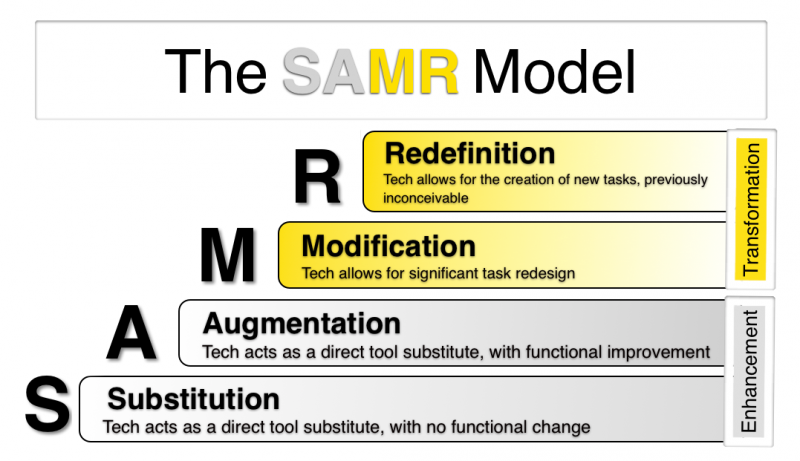
The SAMR model is something that many technology integration specialists persuade teachers to consider when teaching. I find that it is a good to go over it occasionally just to reflect on which part of the model I am hitting or I am not hitting. Therefore, I bring up the SAMR model again and show how it can be used using GAfE tools.
Screencastify is becoming my favorite screencasting tool through Google Extensions. In my last post I discussed how I loved Techsmith's Snagit, however, Screencastify offers a better product. Screecanstify allows you to see when you are recording with a little icon. Furthermore, one can annotate their screen using a variety of tools. My favorite feature is that a user can pause their video. Whether you want to make your own videos or if you want students to get in the action, you will not be let down by Screencastify.
Finally, I feel like Wizer.me is all the rage these days. The tools allows teachers to create interactive worksheets. A teacher can include videos, text, and other multimedia resources. Teachers can assess using multiple choice questions, but the matching and image labeling functions are what I really enjoy. They do offer the option to allow students to write answers, but I did not like how I couldn't give specific feedback at the question location, rather the only place to give feedback is at the end of the assignment. Nevertheless, the resource does provide great practice for students, though I would avoid using the writing features. Did I mention the site syncs with Google Classroom? Well, I think I just did. This will make many teachers happy knowing they can efficiently assign assignments.
Monday, February 22, 2016
EdTech Tips: Snagit, Longman, and the best Google dictionary extension
I was under the weather last week, so being able to make a screencast video was a big help. Many different applications and extensions exist, but I have become a big fan of Snagit (by Techsmith). You can create and annotate screenshots, as well as quickly make videos (and upload them to YouTube).
The other tip I show is the Longman Contemporary English Dictionary. I have written about this awesome resource previously, but I found a great Google extension that incorporates the dictionary within a tab. Longman is amazing at providing definitions that are easy to understand, especially for ELL students.
English dictionary translate pronunciation isn't the catchiest name, but this Google extension allows you to get word definitions (using Longman), translations, and even hear how the word should be pronounced without going to a new website.
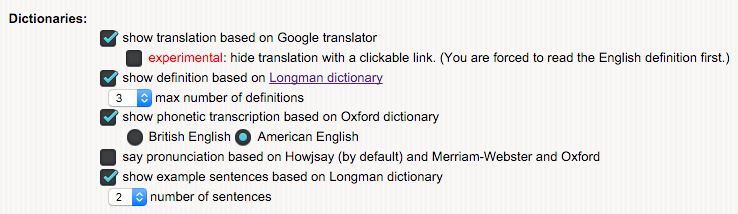 |
| Screenshot of English dictionary translate pronunciation |
Thursday, February 4, 2016
EdTech Tips: Tab-Resize & Triventy
Hello fans and foes! This post is geared towards showing off Tab-Resize and Triventy.
Tab-Resize is a neat Google Chrome extension that makes it easier to have multiple tabs next to each other in a click, rather than trying to resize tabs manually. If you or your students use Chromebooks or an older Mac OS, you will find Tab-Resize extension helpful when you need to view two or more tabs simultaneously.
Triventy is a great website that allows you to run quizzes/surveys in your classroom. You will notice quickly how Triventy is similar to Kahoot. However, I like the fact that Triventy allows you more flexibility when writing questions and answer choices. You can include images, and even add hints for students.
My favorite aspect of Triventy is that students can see exactly the projected image on their devices. Kahoot doesn't do this, and it bugs me since students can't always see very well from in the back of a classroom. Triventy doesn't have the same data collection tools that Kahoot provides, but they tell me they are in the process of adding the feature.
If you are a big Kahoot user, you and your students will appreciate the change Triventy brings.
Check out Triventy's instructions to help you get started...I always appreciate written instructions with corresponding screenshots :)
Tuesday, January 26, 2016
EdTech Coaching Tips for the week of January 25, 2016
Every two weeks I meet with teachers in small groups at my two schools. Before we meet, I encourage the teachers to check out the resources in videos (like the one below) to get them excited for what we will cover. Additionally, if teachers spend a few minutes trying out a tool, we can use the human interaction time to discuss and fine tune any potential problems.
Since I have been doing these sessions, I have developed a simple formula to make the sessions useful, reflective, and efficient for my staff. Each session involves a quick reflection where staff talk about how they currently using technology either with their students or to make administrative procedures more efficient. Next, I introduce a Google extension or app from the Chrome Store. We are GAfE school and our teachers use the gambit of Google Drive applications. Therefore, I introduce a tool to help them and their students get more out of these applications. Finally, I introduce a resource for the staff. In some weeks, it is a document with many resources, however, it is usually a great website to help their students.
For each session, I use a Google Form like this one to gather staff feedback and to showcase resources and my video showcasing these tools and tips.
This week I encouraged teachers to try the freemium Google extension tool of Read&Write and the free GoFormative platform. Information about each of these great tools can be found in the Google Presentation and the screencast video located below.
Since I have been doing these sessions, I have developed a simple formula to make the sessions useful, reflective, and efficient for my staff. Each session involves a quick reflection where staff talk about how they currently using technology either with their students or to make administrative procedures more efficient. Next, I introduce a Google extension or app from the Chrome Store. We are GAfE school and our teachers use the gambit of Google Drive applications. Therefore, I introduce a tool to help them and their students get more out of these applications. Finally, I introduce a resource for the staff. In some weeks, it is a document with many resources, however, it is usually a great website to help their students.
For each session, I use a Google Form like this one to gather staff feedback and to showcase resources and my video showcasing these tools and tips.
Sunday, January 3, 2016
EdSurge's Top Ten S’Cool Tools of 2015

EdSurge is one of my favorite resources when it comes to learning about new tech tools. If you don't already subscribe to their weekly emails providing news and tools, then you are doing yourself a disservice.
I am catching up on my work email before returning back to school tomorrow and I came across their Top Ten S'Cool Tools for 2015 list. I encourage you as a teacher and/or parent to check out the tools provided. The list is heavy on Math and ELA resources, but you will likely find something fun to try out in the coming year.
I am really excited to try Quizalize as another way to assess students in a fun setting. Students love Kahoot, but having other options is always good to sustain student interest.
Mathgames looks awesome too. I like how it is aligned with Common Core and can be shared with Google Classroom seamlessly.
Friday, December 11, 2015
Tech Tips for ELLs...

Many strategies are presented in the article. Here is a breakdown of helpful tips presented by this article when designing assignments that use technology:
- Short Tasks: For assignments that require technology use, it is helpful to organize direction as short tasks. This is a way of chunking text into small doses
- Steps: Along with using short tasks, it is also helpful to make assignments with numbered, step-by-step directions.
- Illustrations: Each short task should include a screen shot showing exactly what the student should be doing.
As you create visual directions, it is a best practice to print them on paper so students can easily follow along and perform each step. This deters students from having to waste time going back and forth trying to follow directions. These tips have guided me for many years, however, it felt good reading that studies back up these practices.
Here is an example of a handout I helped create for a Physical Education teacher:

If you need help learning how to make screenshots, check out this terrific site that shows how to take screenshots on any device!
Thursday, December 10, 2015
A CENTRALIZED List of Google Application Tutorials

It must be the government teacher in me, but I get excited when I am able to take a whole bunch of resources and compiled them into one centralized hub.
Our school system has been using Google products for many years, however, many teachers (old and new) struggle with Google Drive and all of the other Google applications that are becoming a bigger part of teaching. Therefore, I put together a Google Doc document that includes a one-page cheat sheet for each of the Google products, as well as step-by-step image directions.
Google allows for easy translation of their products, so you can translate any of these resources into nearly any language you desire. I foresee the students using this hub too; therefore, I included Spanish language versions of each cheat sheet since I work with many ELL students from Central America.
If you are looking for more GAfE resources, check out this other centralized hub I created this past summer. It focuses on Google Classroom and Drive, and it includes videos.
Happy Googling!
Tuesday, November 24, 2015
EdTech, Meet Project Based Learning (PBL)...

Last week I came across this amazing Google Doc that organizes edTech tools by the Project Based Learning (PBL) phase. I don't remember how I got to it, but I am so happy I found it.
Even if you don't fully implement PBL in your room, you will appreciate the massive number of tools listed that you can use for smaller projects and activities.
Don't forget to check out this hyperlink located at the top of the doc that provides lots more resources with great descriptions.
If you are looking for PBL ideas based by grade level and content area, make sure you check out this other hyperlink included at the top of the document.
Kudos to @jrkauss and @suzieboss for creating this fabulous resource!!
 |
| PBL Timeline Organized by Teacher and Student Source: https://drive.google.com/file/d/0B2sthyfRZivcTV9aZFFJMk9UTjA/view |
Sunday, November 15, 2015
Two great resources I am loving...
It's been a while since I have had a minute to gather my thoughts, but I wanted to share two sites that I will be sharing with my teachers this week.
 The first site, ReadWriteThink contains a plethora of pragmatic teaching games, lessons, resources, and professional development materials for any and all teachers. You can print handouts, as well as find lesson plans that you can tailor for your students. I particularly like the student interactives. These are online resources for students of all grade levels. The Comic Creator looks like a great tool for young and struggling readers. If you teach in a 2:1 or 1:1 environment, you will find lots great resources for your students. My daughter, who is in pre-K, loves Picture Match...she has to pick the letter that is making the sound in the picture.
 IXL is the second resource I want to share with you. If you teach math, science, social studies, language arts, you will find games organized by grade level and topic. The BEST part of IXL's games are when you get a wrong answer, they provide a detailed (and visual) explanation. If you have the funds, you can purchase a license so students (and their teacher) can track their progress. However, the free parts look great too. I foresee using the questions as a warm up or closure activity. You could take screenshots of questions and incorporate the images into a Kahoot!

Wednesday, September 23, 2015
Podcasts for Educators...Educate yourself while you drive!

Check out their extensive collection in the screenshot below. My favorites so far are The Flip Side, #EdChat Radio, #Ed.Tech Chat, and Classroom Q&A. One of the nice aspects of each podcast is that they incorporate a variety of educators from all over the US.
I strongly urge you to try one of the podcasts Bam! Radio offers...

Sunday, September 13, 2015
Gmail Hacks
 |
| Source: http://www.melauspartners.com/gmail-logo-image-211.png |
Besides being a fan of edtech, I am a genuine nerd when it comes to new gadgets. One of my favorite sources for technology news is Boy Genius Report (BGR). I don't normally peruse their site for edtech information, nevertheless, when I ran into these nifty Gmail hacks I knew I had to share them with fellow educators.
My school district has been using GAfE for many years. Gmail has so many settings one can manipulate to customize their experience. Additionally, with the Chrome Store and all of the great extensions that exist, people have created some nifty ways to make Gmail even more efficient and productive.
Of the many extensions listed, I recommend you check out...
- Wisestamp: Create cool signatures that will impress.
- MailTrack.io: Determine if people actually open and read your emails.
- Boomerang: Write an email and schedule it to be sent later.
Thursday, August 13, 2015
Two nifty tools for Mac/Chrome users!
One of the biggest bummers of being a Mac user is that you simply cannot click a button and make your windows magically appear all at once. If you are working with multiple spreadsheets or if you are viewing a video while taking notes...you know what I mean ;)
In a future post, I will write about the large library of FREE extensions and apps available in the Google Chrome store. For now, I want to introduce you to a great extension, Tab Resize. Download it and click on the extension whenever you are using Chrome and need to maintain multiple windows on your screen simultaneously.
My other neat little tool is GIPHY. With this great website you can search for GIFS or make your own using Quicktime (the free version!). The GIF above showing how to use Tab Resize uses GIPHY.
In order to make the GIF above I first created a screencast using Quicktime (something new I learned today too!). In Quicktime just click on FILE, then NEW SCREEN RECORDING and in minutes you can record screencasts that you can turn into a variety of formats (like a gif or upload to YouTube).
Wednesday, August 12, 2015
My Tech Tools for Educators Checklist

Let me set up the impetus for my latest blog post and newest edTech resource. This is the first time in ten years that I will not be teaching my own classes, rather I will be helping educators integrate technology into their classrooms. I was feeling a bit overwhelmed with so many great tools available, and the fact that new tools pop up regularly.
I was listening to a terrific podcast on my way to one of my schools the other day and had an epiphany. During this podcast episode, the host quickly listed different categories: learning management systems (LMS), formative assessment, maker tools, and communication. I said to myself, "YES, I can put together a simple document of resources that would help my colleagues". The purpose of this resource would be to encourage educators research different tools for each category and begin the process of mastering a tool in each category.
Here is the fruit of my vision: a five category Google Doc that lists tools for each of the categories listed below. I included a blank Content Specific Tools category since an educator should have the goal to master a tool that is specifically made for particular content areas. Obviously, I didn't list every tool that exists for each of these five categories. I listed resources that I either have personally used or resources that have a good reputation. Knowing my love affair with tweaking things, I am sure I will make adjustments to my checklist in the future.
I hope you can find a few gems to use in the coming school year!
Tuesday, August 4, 2015
Do you know what GAFE stands for?

I have been a big Google Apps fan for many years. One of the best decision my school district made was adopting the Google tools. I have been doing some research on the various Google Apps that exist to share with my fellow colleagues. The product of my work is this Google Doc (did you expect something else?) with GAFE tutorials, tips, and tricks for users of all levels.
It can be quite overwhelming researching the various Google Apps. However, with more practice, the better you will become. My goal this year is to become more adept using Google Classroom. I am like how it is still relatively simple platform without too many bells and whistles to distract the students or me. On that note, I highly recommend you spend the 20 minutes or so to listen to this terrific podcast about Google Classroom. I was so impressed by the tips the guest Alice Keeler, that I purchased her book on Amazon. I can't wait to read it so I can use and share her tips.
Happy Googling!
Friday, July 31, 2015
Teacher Hacks from Buzzfeed

This is a short post, but I came across a post on social media showing 25 teacher hacks from Buzzfeed. Here is the link. I bet many pros already know some of these, but perhaps you will find a gem to add to your bag of tricks this year. Enjoy!
Subscribe to:
Posts (Atom)